
Preferences
The Preferences enables you to customize these application settings:
Audio Configuration
Here you can specify the audio devices which are to be used by Sononym.
Note that you configure the Playback options from its own menu.
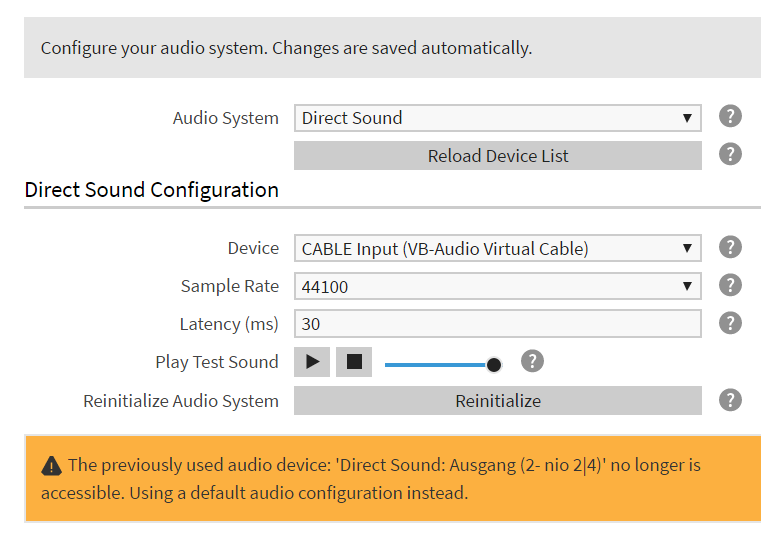
Audio Configuration (showing an error message)
General settings
Audio System
The audio driver architecture that should be used.
A special entry is ‘Default’ (not listed), which will use the system’s default audio output device with a moderately high, but safe latency.
| Architecture | Windows | Linux | macOS |
|---|---|---|---|
| WASAPI | Yes | - | - |
| Direct Sound | Yes | - | - |
| WinMM | - | - | - |
| Core Audio | - | - | Yes |
| PulseAudio | - | Yes | - |
| Alsa | - | Yes | - |
| Jack | - | Yes | - |
Reload Device List
Reload the device list to detect newly connected sound-cards/drivers.
Device
The audio device that should be used for audio playback
Sample Rate
The audio playback sample rate. The higher the sample rate, the more detailed the playback will be, but also the more CPU power will be used.
Buffer Size
The audio driver’s buffer size. Higher numbers will reduce the possibility of crackling sound at high CPU usage, but will also cause more latency.
Play Test Sound
Starts a simple test sound to quickly check if the audio setup is working.
Reinitialize Audio System
Closes, then re-opens the connection to the soundcard/driver. May be useful for troubleshooting.
MIDI Configuration
Here you can configure how (and if) you want to control sample playback using MIDI.
MIDI Input Device
Choose your MIDI Input Device
MIDI Channel
Decide if you want to use a specific MIDI Channel on the input device.
Stop playback when key is released
Enable this to stop sample playback when you release a note on the keyboard.
Ignore incoming MIDI while in background
Enable this option to avoid that other software/hardware is triggering samples while not actively using Sononym.
Display Configuration
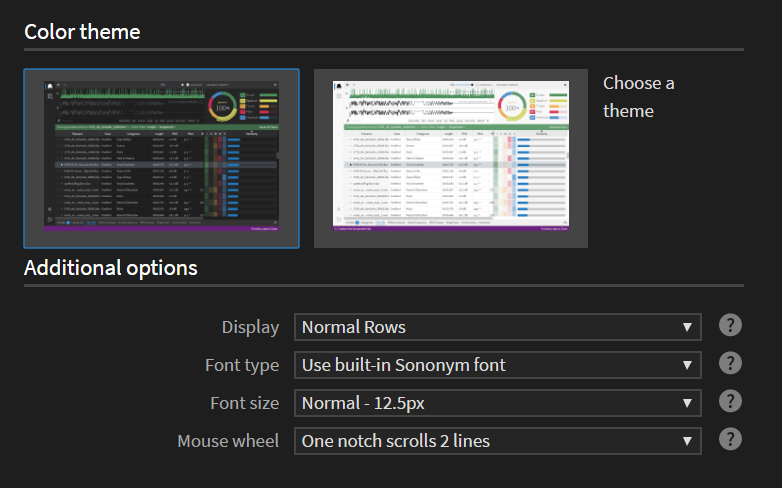
Display - the dark theme has just been applied
Color Theme
Choose between a light and dark theme. The change is applied immediately.
Additional Options
Note that some options (zoom level & full-screen mode) are only available from the application menu.
Display
Specified a general size for table rows, tree widgets etc. Useful, e.g. to make the GUI more touch-screen friendly.
Font type
Specify the font type - either use the built-in font, or the system default.
The latter can be a better choice in case you have disabled anti-aliasing on your computer.
Font size
Specify which font-size to use.
Mouse Wheel / Scrolling
Specify the desired scrolling behaviour and sensitivity:
  Touch/Trackpad: Smooth Scroll
  Mouse Wheel: One notch = 1 line
  Mouse Wheel: One notch = 2 lines ← Default choice
  Mouse Wheel: One notch = 3 lines
  Mouse Wheel: One notch = 4 lines
Note: the first option is recommended if you’re using a touch/trackpad and feel that scrolling is overly sensitive.
Search Configuration
General Settings
Search embedded metadata in files
If enabled, all available metadata (such as artist name, genre and other information embedded into your files) is searched in addition to the filename/path.
Preview files while stepping through results
If enabled, files will be previewed while stepping through search results (i.e., while pressing and holding down the arrow up/down keys). Requires that Auto-Play is enabled in the main toolbar.
Reset filters prior to launching a similarity search
If enabled, all filters (including selected folder) are reset when launching a new Similarity Search.
Specify which network port to use
Specify the port number we use for communicating with the audio analysis process (a.k.a. the Crawler). If this process is running, the new value will be applied once the process has finished.
Project Configuration
Default Settings
This section allows you to specify default settings. This includes where to store projects on disk, and whether they should make use the auto-export feature.
NB: these settings applies to newly created projects. To change settings for an existing project, bring up its associated Options dialog.
Other Settings
Post Export Action: What action to take after a successfull export has completed.