Upper Panel
The upper panel contains query history + playback options, and below, a waveform display.
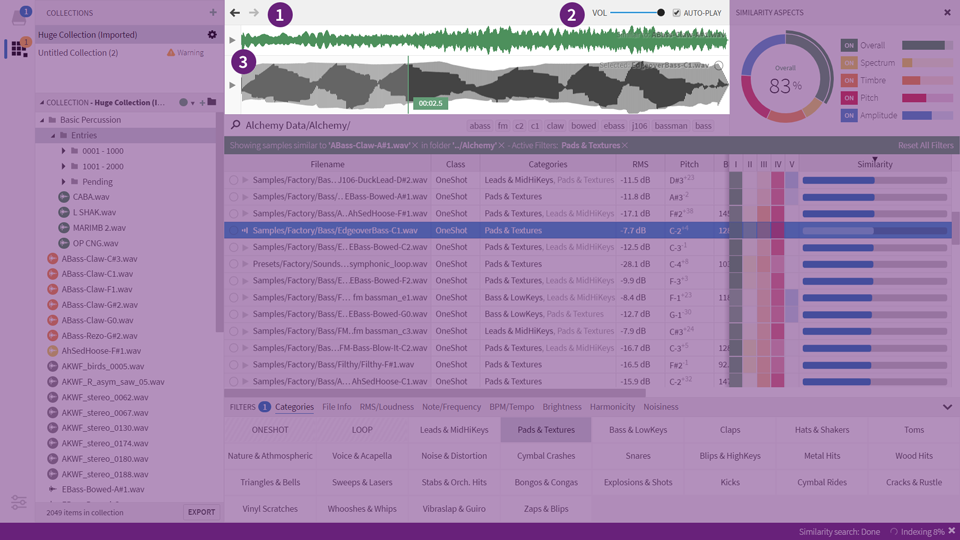
Query History (1), Playback Options (2), Waveform Display (3)
Query History
The two arrows situated to the left controls the query history. Think of the ‘back’ button in a browser - that is, the ability to revisit every location and folder you have previously navigated to, or filter you have applied. Keyboard shortcuts lets you navigate the history as well.
Playback Options
Playback & Record

The first few buttons work as expected:
- Play Press this button to preview the current sample,
- Auto-Advance If enabled, playback will automatically advance to the next file once the current file stops playing.
- Prev/Next Applies when Auto-Advance is enabled: will jump to previous or next file in the sequence.
- Loop Enable this to repeat the sample indefinitely.
- Stop Pressing Stop (or ESC) will immediately stop playback.
- Record Press this button to capture line input (e.g. a microphone, synth or any other sound source) and use this as the source for a similarity search. The recording process can be aborted at any time by pressing Cancel, Stop or by hitting Esc.
Auto-Advance is restricted to your selected files, when more than one file has been selected.
Recordings are automatically saved in the Sononym documents folder. Your recordings will also automatically become part of the Query History, so you can do any number of takes, and use the previous/next buttons to switch between your takes.
Check the keyboard shortcuts associated with these buttons.
Pitch Control
A simple pitch control, allowing four octaves transpose.
- Click-and-drag to change the pitch
- Double-click to edit transpose.
- Use Mouse Wheel to change value in semitone increments
Pitch Lock: When a sample is selected, the pitch control contains an option to “lock” the pitch. This will attempt to maintain the pitch of the file you have selected, as you step through/select other files. How well this works, depends on how accurately the application was able to detect the pitch in your sounds.
Volume Control
Should be self-explanatory, a volume control which works in the decibel (dB) range.
Auto-play
This option will decide whether files are automatically previewed when selected. If you disable this option, you can still use the preview button (in search-results), the context-menu options or keyboard shortcut to trigger a preview.
Any active playback can be interrupted by pressing the escape (ESC) key while a relevant panel is focused
See also: keyboard shortcuts
Other playback options
Sononym comes with a number of additional playback options, which can be configured through the Playback menu:
- Play Selected File : works the same as pressing
Space - Play Similarity-Src File : when in similarity search mode, this will preview the source sound
- Play Random File : this one will select a random file in the results and play it. Switches to “weighted” randomness when the results are filtered by a category, or you are in similarity-search mode (basically, it will prefer results that are higher up the list)
- Stop Playback/Recording: : forces the current playback and/or recording process to stop
- Toggle Loop : toggle the loop mode
- Toggle Recording : toggle the recording mode
- Play Keyboard Shortcut Behavior: : here, you can decide how the default shortcut will operate - there are three choices,
Start/Retrigger,Start/StopandStart/Pause/Resume. - Suspend Playback while App Doesn’t Have Focus : here you can decide if active playback should be suspended (paused) as focus leaves the application. The suspended sound will resume playing once the application regains focus.
- Stop Playback when Dragging File: Enable this option if you want playback to stop as soon as you start to drag a file.
Waveform Display
In normal use, the waveform display shows the currently selected file, with the name visible as a label in the upper right-hand corner. While searching for similarity, two waveform displays appear, with the upper one showing the similarity source.

In similarity search mode, two displays are stacked on top of each other
Click a waveform to play it, or press the play button to the left (or Return) to play from the beginning. The Left and Right arrow keys can be used for “scrubbing” through the file. And as always, hitting Escape will stop the playback.
Creating a selection
Simply press the waveform and drag to create a selection. Dragging along either edge will allow you to resize the selection, and dragging along the top will allow you to move the entire selection:

And of course, selections will also affect how playback works. For example, playing a looped sample will respect the selection boundaries - also while they are dragged around.
Note: a couple of keyboard shortcuts have been introduced, to enable previewing of the entire file or just the selection. Please see Sample Playback for more information.
Search for similarity to the selected audio
If you want to search for similarity to e.g. a single snare hit within a loop, simply drag to select the desired part and right-click, or click the similarity icon in the top right corner:

Create a selection in a sample and drag it somewhere else.
The selection can also be dragged into your DAW, or any other application that accepts audio files.
To crop the sample on-the-fly, simply position your mouse over the the selection and drag it into your desired spot. You can also drag it straight into a Sononym project using this approach.
