User Interface
The user-interface is divided into the following sections:
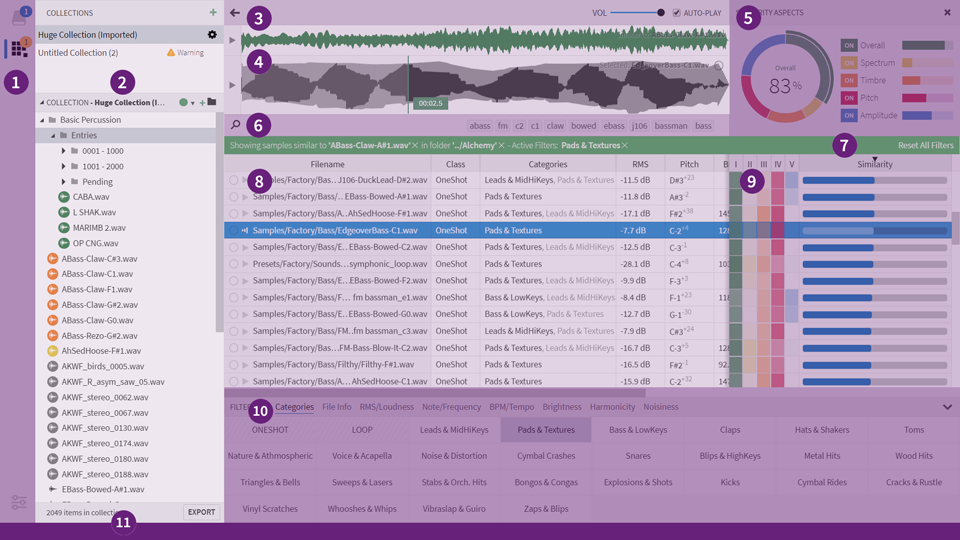
- Activity Bar - select sidepanel and view warning/activity badges
- Sidepanel - contains Libraries, File Explorer, Projects and Favorites
- Main Toolbar - query history + playback/volume controls [link]
- Waveform Display - displays similarity source / selected waveform [link]
- Aspects Dial* - for adjusting an active similarity-search [link]
- Search input - current path, search terms and keywords [link]
- Filter Banner - displays/applies search filters [link]
- Search Results - table containing search results [link]
- Similarity Ratings* - columns with similarity-search ratings [link]
- Filter Panel - manages search filters [link]
- Status Bar - display status, progress indicators, and so on…
* Only visible while in similarity-search mode
Display Configuration
You can customize the color theme, font size and other display options from Preferences
In addition, you can change following from the application menu
- Change the overall Zoom factor
- Enter/exit full-screen mode
- Toggle various user-interface elements
A special option, which is available on Windows only, is the ability to hide the menu bar. When you choose to do so, the ALT button is used for toggling the menu bar on and off.
Drag-and-drop
The application supports bi-directional drag-and-drop. Meaning, that you can drag files and folders on top of the application and (audio) files out of the application window.
It’s possible to drop audio files onto the application to launch a similarity search, or folders. The latter will convert the folder into a library, or, if already indexed, open the library.
Additionally, you can drag files around within the application itself. This will allow you to move folders or files with ease, in a way that ensures that your Sononym projects and favorites are kept up to date.
Detachable panels
It is possible to “dock” panels in a secondary side-bar (on the right-hand side), as well as more flexible grouping on the left side. All in all, this allows better use of the horizontal space.
To detach/reorganize panels, simply click the desired panel header and drag it to your desired destination.
The destination can be the Activity Bar (1), Sidepanel (2), or the Secondary Sidepanel (not shown).
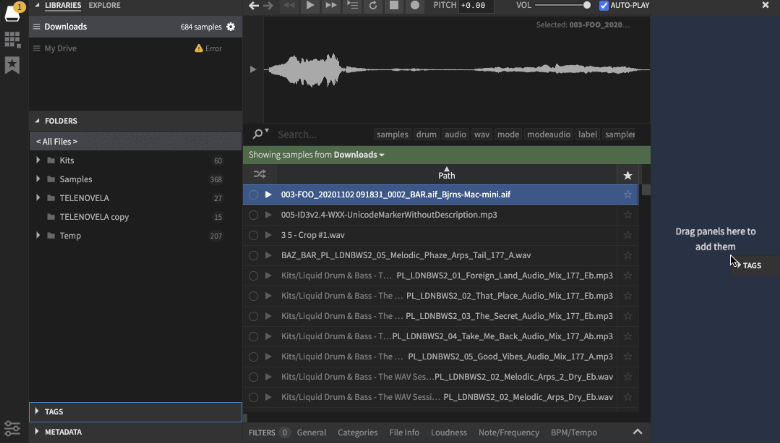
The Secondary Sidepanel is initially hidden, but will reveal itself once you drag a panel near the edge of the window.
Also, you can reveal the Secondary Sidepanel from the View menu, or by carefully dragging from within the right edge of the window.